GitHub Keeps Telling Me My Branch Is Fine. And Also Not Fine. At the Same Time.
If you've ever opened a pull request and watched the status flip between 'up to date' and 'behind main' over and over for no apparent reason — this post is for you. What's actually happening, what to do about it, and why it's not your fault.
More in Guides
- Your Claude Code Skill Won't Trigger? The Description Is Doing 90% of the Work
- Automating a Monthly Meal Planner with OpenClaw Cron — A Beginner's Step-by-Step
- Why one benchmark won't tell you the best coding LLM in 2026 — and which three together actually do
- Designing Frontends Claude Can Actually Use — A 7-Step Field Guide From the Day My Scoring App Got Audited by Its Own AI
- Stop AI from Fabricating Research Citations: A Build-Pipeline Checklist
You open GitHub. You look at your pull request. It says:
This branch is up to date with main.
Great. You close the tab. You come back ten minutes later. Now it says:
This branch is 2 commits behind main.
You click "Update branch." It goes back to "up to date." You leave for lunch. You return. Three commits behind. You update again. Up to date. You blink. Behind again.
Nothing you did changed. Nobody told you anything changed. GitHub is just out there, making announcements, apparently at random.
This is one of those things that makes GitHub feel genuinely hostile to people who didn't grow up with version control. Not because it's broken — it's working exactly as designed. But the design assumes you already understand something that nobody explains.
Here's the explanation.
📋 Your Branch Is a Snapshot, Not a Live Connection
When you create a branch from main, you're taking a copy. A photocopy. Your branch has everything that was in main at that exact moment, plus whatever changes you add afterward.
The problem: main doesn't stop moving just because you made a copy.
If someone else — or a bot, or an automated process, or your past self — pushes new commits to main while you're working on your branch, main has now moved forward. Your copy is still based on where main was, not where it is.
That's the "behind" message. GitHub is saying: "hey, since you copied this, the original has changed."
A better way to think about it: imagine you and a colleague are both editing the same Google Doc. You copy the doc to work on your version. Meanwhile, your colleague keeps editing the original. At some point you need to merge your edits back into the original — but first, the original has changed. Your copy is "behind" the original.
That's branches.
🔄 Why It Keeps Flipping
Here's the specific thing that causes the ping-pong experience:
When GitHub says "2 commits behind", it means your branch is missing commits C and D from main. When you click "Update branch", it pulls those in. Your branch is now based on D, not B. "Up to date."
Then someone pushes commit E to main. You're 1 commit behind again.
This isn't a bug. This is just what happens when multiple people (or bots, or automated CI/CD pipelines) are pushing to the same repository at the same time. The main branch is a moving target.
🖼️ What the GitHub Mobile App Shows
Here's what this looks like in practice on the GitHub mobile app when you open a pull request:
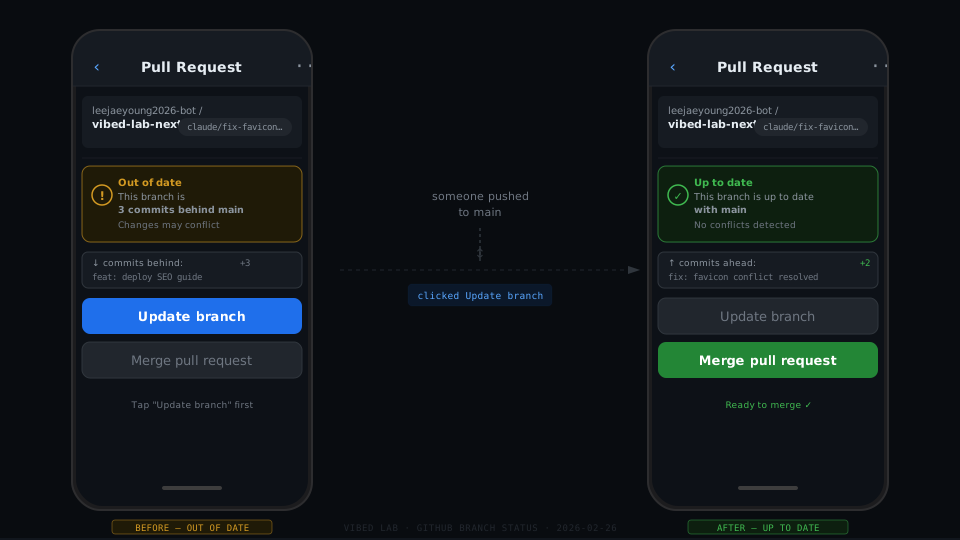
Left: the branch is behind main. The "Merge pull request" button is greyed out and "Update branch" is the active action. Right: after clicking update, the merge button turns green and the warning is gone.
The mobile app is actually clearer about this than the desktop. The yellow warning box and the disabled merge button are hard to miss. On desktop, the same information is there but it's easier to scroll past it.
✅ What to Actually Do
If you see "X commits behind main":
You have two options.
Option 1 — Update branch. Click the "Update branch" button. GitHub merges the latest changes from main into your branch. Your branch is now current. If there are no conflicts, this happens automatically in one click. If there are conflicts, GitHub will tell you what files disagree and ask you to resolve them.
Most of the time, for solo projects or small teams, there are no conflicts and "Update branch" is a one-second operation.
Option 2 — Don't update. This is also valid. If your PR is ready to merge and you're the one merging it, you can often just merge directly even if you're a few commits behind — GitHub will handle incorporating both sets of changes. The "behind" warning is advisory, not a hard blocker (unless there are actual conflicts).
If you see "up to date":
You're good. The branch has everything that's in main. You can merge.
If you see "X commits ahead, Y commits behind":
This is the normal state for any active branch. Ahead = your changes that aren't in main yet. Behind = main's changes that aren't in your branch yet. This is expected. Update branch if you want to bring in the latest from main before merging.
🤔 The Situation That Actually Confuses People
The really confusing scenario isn't one-time "behind" messages. It's the loop:
- You update branch → "Up to date"
- Two minutes later → "Behind again"
- You update → "Up to date"
- Five minutes later → "Behind again"
This happens when there's automated activity on the repository. CI/CD pipelines pushing build artifacts. Bots opening and merging their own PRs. Dependency update tools making commits. In a project with active automation, main can receive new commits every few minutes.
For this site, that's literally what happens — automated PRs from Claude bot branches get opened, reviewed, and merged regularly. If I'm working on something at the same time, my branch will go "behind" every single time one of those automated PRs lands.
The practical answer: stop trying to keep the branch permanently "up to date." Update it once, right before you're about to merge. Don't chase the moving target in real time. Refresh, update, merge. Done.
⚠️ When "Behind" Actually Matters
There's one situation where being behind main matters more than usual: merge conflicts.
A conflict happens when both your branch and main have changed the same part of the same file in different ways. GitHub can't automatically decide which version to keep. When this happens, the "Update branch" button will show a conflict warning instead of just merging, and you'll need to manually resolve the disagreement.
Conflicts are more likely to happen when:
- You've been working on a branch for a long time while main kept moving
- You and someone else edited the same file (or the same section of a file)
The fix for conflicts is always the same: update your branch, resolve the conflicts (GitHub has a built-in conflict editor), commit the resolution, and then merge. It's more steps than a normal update, but it's not mysterious once you know it's coming.
A Quick Reference
| Message | Meaning | What to do |
|---|---|---|
| Up to date with main | Your branch has all of main's commits | Nothing. Ready to merge. |
| X commits behind | Main has new commits you don't have | Click "Update branch" or merge anyway |
| X commits ahead | You have commits that aren't in main yet | Normal — that's your changes |
| X ahead, Y behind | Both of the above at the same time | Normal. Update before merging. |
| Conflicts | Same file edited in both places | Resolve conflicts, then continue |
💡 The Honest Takeaway
GitHub's branch status messages make complete sense once you understand that "up to date" is a relative status, not a permanent one. Your branch is up to date relative to where main is right now — and "right now" is a moving target.
You don't need to chase it. You need to catch it once, right before you merge, and then let go.
The flip-flopping that looks like instability is actually just the normal rhythm of a shared codebase. Multiple people (or bots) pushing things, main moving forward, branches temporarily falling behind. It's supposed to look like that.
Once that clicks, the yellow warning stops feeling like an accusation and starts feeling like what it actually is: a heads-up that someone else did something since the last time you looked.
Written by
Jay Lee
Korea-Licensed Pharmacist (#68652) · Senior Researcher
Korea University, College of Pharmacy (B.S. + M.S., drug delivery systems & industrial pharmacy). Building production-grade AI tools across medicine, finance, and productivity — without a CS degree. Domain expertise first, code second.
About the author →Related posts